
Getting started
How to set Gesort up
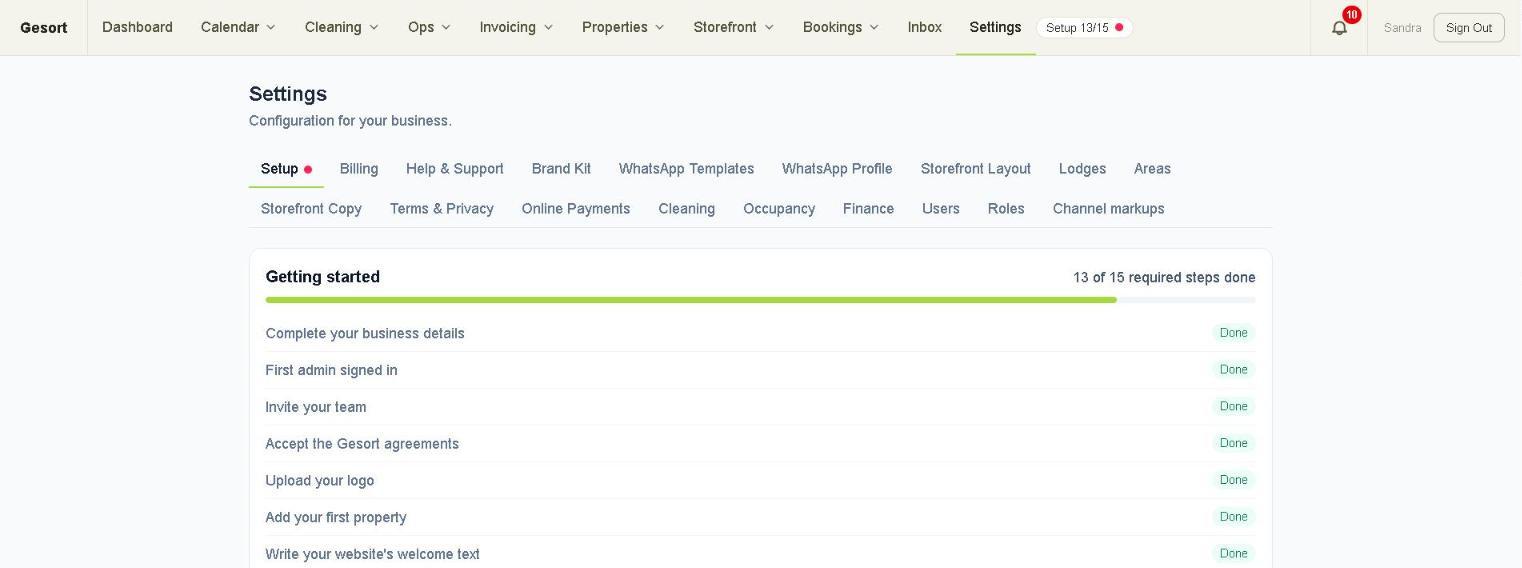
Gesort is set up by you, in your own account, and most of it is done on the day your trial starts. WhatsApp, NightsBridge and PriceLabs are three separate connections and you do not need all three to begin — the calendar, your properties, cleaning and guest guides work without any of them. Gesort keeps the list for you as you go, under Settings › Setup, and this page is the same list with what to have ready beside it.
Gesort — getting started · gesort.co.za/get-started
Before you start: what you’ll need
Everything below is something you bring to Gesort rather than something Gesort gives you. Tick it off before you sign up and the rest of this page is an afternoon’s work. Print this section on its own if it helps.
For everyone
- An email address for your Gesort login, and one for each team memberOne login belongs to one business, so anyone who already signs in to another Gesort business needs a different address for yours.
- Your logo, your colours and your legal detailsCompany name, registration and bank details go into your Brand Kit, and from there onto your booking site, guides, invoices and statements.
- A list of your propertiesFor each one: the name your team uses, the name guests see, the address and area, how many it sleeps, how many bedrooms, and photos.
- Your terms and conditions and your privacy policy, as textOnly if you will take direct bookings. You paste both into Gesort; it does not write them for you.
- Up to three test contactsYour own phone, a colleague, a friend. During the trial every message Gesort sends goes to your signup email and these three and nowhere else, so you can see exactly what a guest will get.
For the shared WhatsApp inbox
The inbox carries WhatsApp conversations only. Airbnb and Booking.com messages stay in those platforms.
- A phone number for the business that is not on WhatsAppIt must not be on the WhatsApp or WhatsApp Business app. If it is, delete the account from the app first — that clears its chats unless you back them up. If you want to keep using the WhatsApp Business app on your main number, use a separate number for Gesort. A new prepaid SIM is the simplest choice.
- That SIM in a phone you controlMeta checks the number with a code by SMS or a phone call, and can ask again later. Virtual and VoIP numbers often never receive Meta’s code, so use a real SIM in a real phone.
- A six-digit PIN, written downIt protects the number on WhatsApp and Meta asks for it again if the number is ever registered again. Gesort refuses an easy one: a digit repeated (000000), a run (123456 or 654321), or a short pattern repeated (121212). If the number already has a two-step verification PIN, use that one.
- A Facebook login and a Meta business portfolioYou sign in to Facebook in Meta’s own window and choose or create the portfolio and a WhatsApp Business Account there, so you can do it on the spot if you have neither.
- A payment method on your WhatsApp Business AccountYou add it in WhatsApp Manager after connecting. Meta bills you directly for template messages and none can be sent until one is there. Gesort does not resell WhatsApp and adds no markup.
For channels and pricing
Optional. Skip the whole group and your calendar still works.
- Your NightsBridge BBIDsThe establishment number of each NightsBridge account you want in Gesort, digits only. One BBID or many — they all land in one calendar.
- Which channels NightsBridge should handleBooking.com, Airbnb, LekkeSlaap, as many as apply. Anything you leave out can stay on an iCal link.
- Your Booking.com extranet loginIf NightsBridge will handle Booking.com, you choose NightsBridge yourself under Account › Connectivity provider in the extranet before Gesort can map the property.
- Your PriceLabs account, and the email you sign in to it withYou pay PriceLabs directly and Gesort charges nothing extra for the connection.
- Each channel’s iCal link, if you are not on NightsBridgeiCal works from the first day with no arrangement. It is not instant: Gesort reads each channel every 15 minutes and each channel reads Gesort on its own schedule.
For card payments
Optional, and only if guests will pay you on your own booking site.
- Your own PayFast or Paystack accountGuests pay you directly, into your account. Gesort does not hold the money and takes no cut of it.
- Your gateway’s test keysDuring the trial, payments run in test mode and no guest can pay you for real. You can save your live keys in the trial and they start taking payments when you choose a plan.
Setting Gesort up, in order
This is the order the app’s own setup guide uses. Gesort tracks which of them are done under Settings › Setup and tells you what is left, so you can stop and come back.
Start your free trial
The trial is the full Host Basic plan for 30 days, with no card needed. It starts at your first sign-in once Gesort has approved the account.
In Gesort: app.gesort.co.za/signup
- Messages go only to your test contacts, automated guest messages are off, your booking site is kept out of Google and payments are in test mode. Every one of those limits lifts when you choose a plan.
- Host Advanced — owner statements, invoices and financials — switches on when you confirm your plan in Settings › Billing.
Fill in your business details and branding
Your logo, colours and legal details are read by your booking site, your guest guides, your invoices and your owner statements, so everything downstream looks right the first time.
In Gesort: Settings › Brand Kit
Add your test contacts
Until you choose a plan, Gesort will only message your signup email and up to three contacts you name here. Add them before you test anything that sends.
In Gesort: Settings › Test contacts
Add your properties
Everything else in Gesort hangs off a property: the calendar, the cleans, the guide, the listing on your site.
In Gesort: Properties › New Property, then Create Property
- The form is in sections with a jump bar: Basic, Management, Capacity, Check-in & out, Cleaning & Linen, Note & SEO and the rest.
- The Website Listing card has its own Save button. Save Changes at the bottom of the form does not save it.
Invite your team and set their roles
Each person gets their own login and sees only the screens their role opens. Cleaners are not invited here — they work off a link instead (step 8).
In Gesort: Settings › Users, under Invite someone
- Enter their name, email and role, then Send invite. They get an email in your business’s name with one link to choose a password, and replies come to you.
- Gesort starts you with Admin, Ops Supervisor, Laundry Supervisor and Reservations Administrator. Edit those or add your own under Settings › Roles.
- The invite form starts on a non-admin role, so making someone an administrator is a deliberate choice.
Connect WhatsApp
This is what turns on the shared inbox and lets Gesort send guests their confirmations and stay guides. It is self-serve: you do it yourself, through Meta’s own signup window.
In Gesort: Settings › Connect WhatsApp (admins only)
- Tick the two boxes, type your six-digit PIN twice and choose Continue with Facebook.
- In Facebook’s window: sign in, choose or create your business portfolio and a WhatsApp Business Account, enter the display name guests will see, and add the number. Meta checks it with a code by SMS or phone call.
- When the window closes Gesort finishes in a few seconds. Meta checks the display name afterwards, so it can sit as pending for a while.
- Then add a payment method in WhatsApp Manager. Gesort’s page tells you whether Meta reports one yet.
- You get up to three attempts a day. Closing Facebook’s window early does not use one up.
Choose how each property’s calendar connects
One route per property: iCal, which works straight away, or NightsBridge, which Gesort arranges for you.
In Gesort: Settings › Channels (admins only)
Set up cleaning
Gesort can put each stay’s exit clean on the schedule off the check-out, so the work appears without anyone typing it in.
In Gesort: Settings › Cleaning, then Cleaning › Staff, Cleaning › Checklists and the Cleaning Schedule
- Add your cleaners under Cleaning › Staff, build your checklists under Cleaning › Checklists, and set recurring rules on the schedule.
- Your cleaners need no login and no app. On Cleaning › Staff, press Issue link on the cleaner’s row and then Share link to send it by WhatsApp or email. The link is their login, there is no expiry, and Revoke cuts it off at once.
Write your guest guides
One guide per property, on a link you can share. Door codes and other sensitive fields stay hidden until the guest’s own stay link opens on check-in day.
In Gesort: Properties › Guide Fields to decide the fields, then Properties › Guide Content to fill them in
- Save publishes. There is no draft and no preview, and a field left blank is left out of the guide rather than shown empty.
Connect PriceLabs, or set your own prices
PriceLabs prices each night for you. Without it you set prices yourself and nothing is missing from the booking site.
In Gesort: Properties, open the property, the PriceLabs card
- Without PriceLabs: set a Default Rate (R/night) under External Integrations, and add the dates that differ under Pricing Calendar with + Add price period. A night no price period covers is charged at the Default Rate; leave the Default Rate blank and those nights cannot be booked on your site.
Set up your booking site and payments
Your own booking site is the channel you pay no commission on. A free yourname.gesort.co.za address is included; a custom domain is optional, at extra cost.
In Gesort: Settings › Storefront Copy, Settings › Areas, Settings › Terms & Privacy and Settings › Online Payments, then the Website Listing card on each property
- A listing goes live when you tick Listable on the storefront. Gesort refuses until the property has coordinates, a description and at least one photo.
- Online Payments takes your own PayFast or Paystack account. In the trial it runs in test mode, and every checkout page says so.
Bring your existing bookings across
Optional, and you can do it after you are live. Past stays give your reports and your owners a full year rather than a half one.
In Gesort: Calendar › Import past stays, and Import for channel files
- Past stays come in from a NightsBridge Booking Summary. There are separate importers for Booking.com, Airbnb and LekkeSlaap.
Put Gesort Go on your phone
The shared inbox, the calendar, blocks and alerts in your pocket. Get it on Google Play; iOS coming soon. Cleaners do not need it — they get a link to the field checklist.
In Gesort: Sign in with the same email and password you use for Gesort
Connecting PriceLabs
You bring your own PriceLabs account, connect it per property, and PriceLabs then sends Gesort a nightly price and a minimum stay for each night. The order matters: PriceLabs has to allow Gesort before Gesort can create the listing.

In PriceLabs: allow Gesort
Until this is ticked, PriceLabs refuses the listing Gesort tries to create and the card in Gesort says so.
- Sign in to PriceLabs and choose Add your listings, or Add/Re-import Listings if you already have some.
- Choose PMS / Channel Manager, then GESORT from the list.
- Tick “Allow GESORT to add listings to your PriceLabs account”, and Save.
In Gesort: open the property
The PriceLabs card sits on the property’s own page, below Channels, on accounts whose plan includes PriceLabs.
- Properties, then the property — or Properties › New Property for a new one.
Fill in the five required fields
PriceLabs only accepts a first calendar that has a price for every night, and a new property has no PriceLabs prices yet, so the Default Rate prices the nights nothing else does.
- Default Rate (R/night), under External Integrations. It shows only on a property marked Managed.
- Bedrooms, City, Latitude and Longitude, in the Website listing section — saved with that section’s own Save button.
- If any of the five is missing the card names it, links straight to the field and offers no button. An incomplete listing is never sent to PriceLabs.
Connect
One property becomes one PriceLabs listing, whatever channels it is on.
- On the PriceLabs card, enter the email you sign in to PriceLabs with and press Connect to PriceLabs. A property that was connected before shows Reconnect instead, and keeps its old listing ID.
- Only an admin can, and not under support access.
Read the card
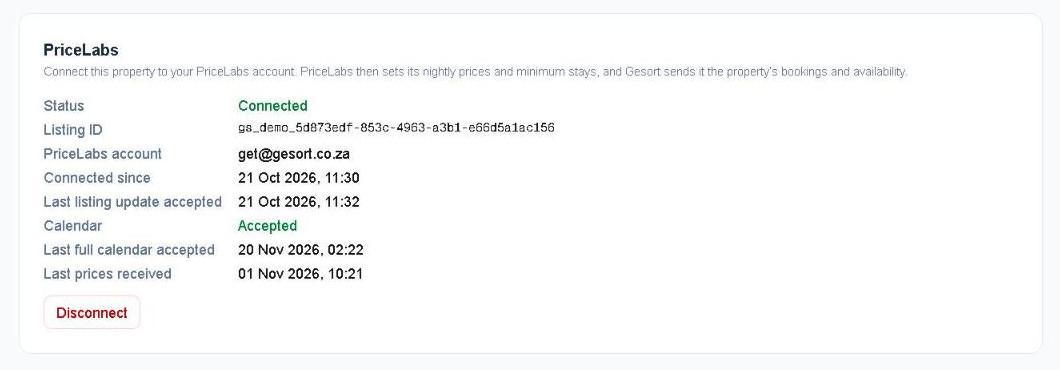
Gesort creates the listing in PriceLabs and sends the property’s bookings and a full calendar. The card reports each one.
- Status reads Connected once PriceLabs has accepted the listing; Waiting for PriceLabs before that, or Rejected by PriceLabs with PriceLabs’ own reason and what to fix.
- Calendar reads Accepted, Not accepted yet, or Rejected by PriceLabs on the same rule.
- You never have to connect twice. After you fix something, Gesort sends the listing again on its own, and both again every 15 minutes.
In PriceLabs: price the listing and switch sync on
Gesort does not set your prices. PriceLabs does, and only once you have told it what to work between.
- The listing appears under PMS GESORT, one per Gesort property.
- Set its minimum, base and maximum prices, then enable Sync Prices — or Sync Now to push straight away.
Back in Gesort: check the prices arrived
This is the proof that the loop is closed.
- Last prices received on the card updates within about a minute of the sync.
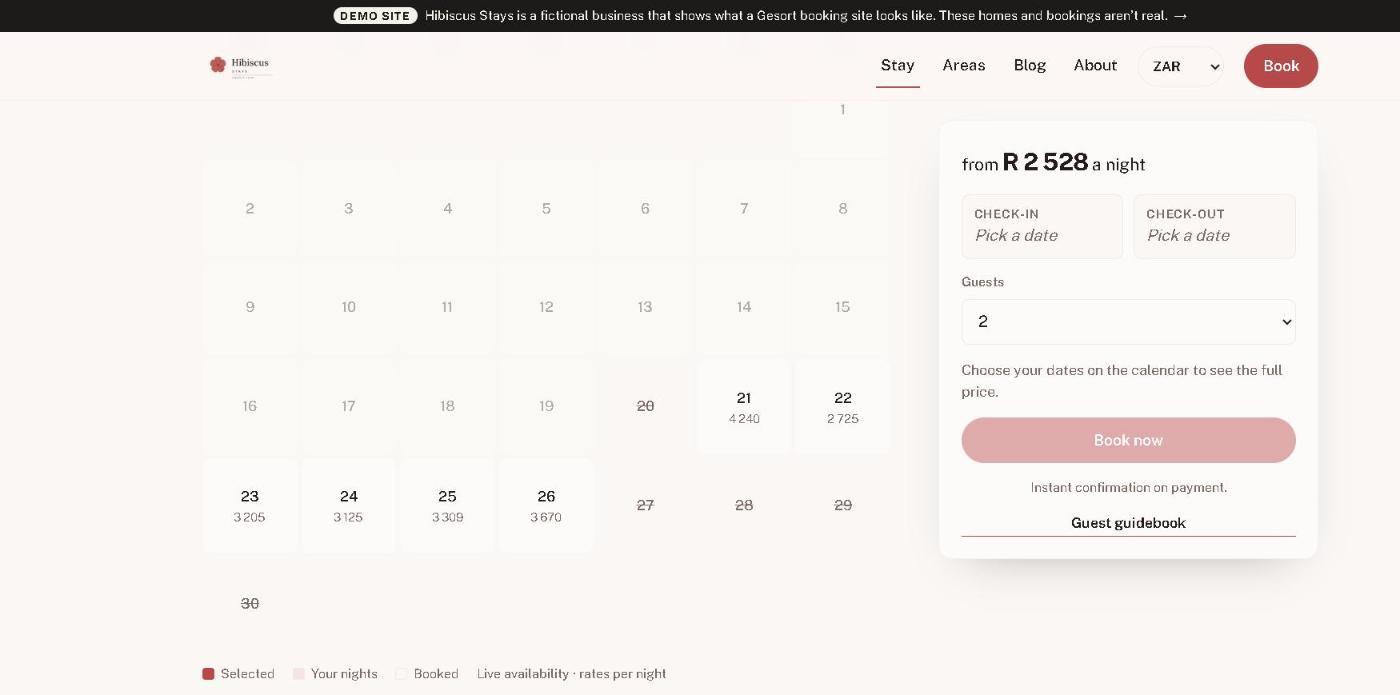
- Your booking site then shows PriceLabs’ nightly prices, night for night.
Before you press Disconnect
Disconnect, on the same card, asks you to confirm and then tells PriceLabs the listing is unavailable. That property’s booking site then shows no prices at all and offers guests Enquire until you reconnect — it does not fall back to your price periods or your Default Rate. Reconnect later with the same listing ID.
What PriceLabs does and does not do with Gesort
| With Gesort | |
|---|---|
| Prices pushed ahead | Up to 720 days |
| Bedroom count picked up automatically | Supported |
| Minimum stay set in PriceLabs | Supported |
| Portfolio analytics | Supported |
| Weekly / monthly discounts | Not yet supported |
| Check-in / check-out day restrictions | Not yet supported |
| Extra-person fee | Not yet supported |
| Multi-unit listings | Not yet supported |
| Length-of-stay pricing | Not yet supported |
| Rate plans | Not yet supported |
A minimum stay set in PriceLabs applies in Gesort and on your own booking site. On the channels NightsBridge handles, minimum stays are still set in NightsBridge for now.
From PriceLabs’ own Feature Availability sheet, the GESORT row, read on 20 November 2026. The sheet ↗
Moving from another system?
If you already use PriceLabs with a different property management system, PriceLabs has its own article on carrying your settings across rather than starting again.
What it costs
PriceLabs bills you directly and Gesort adds nothing to it. The connection is included on the host plans, from R650 a month.
Connecting NightsBridge
This one is not a button you press and finish. You ask for it in Gesort, Gesort arranges it with NightsBridge, and the property moves through a few stages before it is live. You can watch where it is the whole way.
Ask for it
Gesort receives one request covering every property you tick.
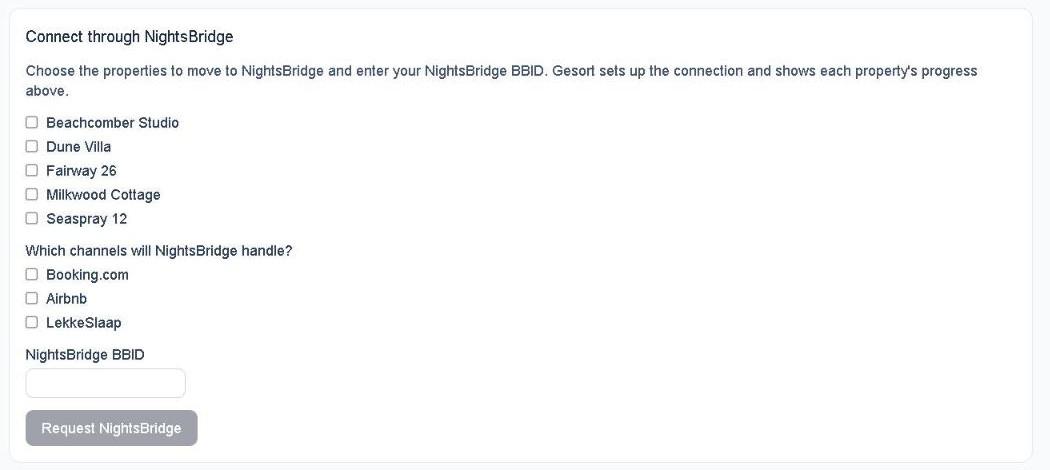
- Settings › Channels, under Connect through NightsBridge: tick the properties to move.
- Choose which channels NightsBridge will handle — Booking.com, Airbnb, LekkeSlaap.
- Enter your NightsBridge BBID, digits only, and press Request NightsBridge.
- The request also appears under Settings › Help & Support, where you can reply to it.
Do your bit in the Booking.com extranet
Only you can do this, and Gesort cannot map the property until it is done. The property sits at Waiting on you until then.
- In Booking.com, open Account › Connectivity provider and choose NightsBridge.
Gesort and NightsBridge do the mapping
Your rooms are matched to your properties in Gesort. You do not touch an API key and your NightsBridge login does not change.
- Mapping: Gesort is matching the property to your NightsBridge room types.
- Testing: Gesort is testing the connection.
- Before you go live, NightsBridge will arrange a short prep call with you.
- Live: bookings and availability for the channels NightsBridge handles now flow through it, and the line underneath names them.
Check what changed when it goes live
Gesort switches off only what would double up.
- If you ticked Airbnb, Gesort stops reading that property’s Airbnb iCal calendar so the same booking is not imported twice.
- Nothing else is switched off. Your other iCal imports keep running, so you can leave some channels on iCal and put others through NightsBridge.
Several BBIDs
They all appear in one Gesort calendar and one shared WhatsApp inbox. One NightsBridge account or twenty-five works the same way.
Rates and minimum stays
With PriceLabs connected, your rates reach your channels through Gesort and NightsBridge. Minimum stays are still set in NightsBridge for now.
Cancellations and changes
NightsBridge sends cancellation and modification notices by email only. Gesort sets up how those reach it with you at go-live, so you do not have to watch for them yourself.
Before you call it live
Six things to try yourself, in the order a guest would meet them.
- A test booking goes through on your own booking site, and shows in the Calendar marked TEST.
- A WhatsApp message to a test contact is sent, and their reply lands in the inbox.
- A guide link opens on a phone and reads properly.
- A cleaner’s field-app link opens and shows that cleaner’s jobs.
- A NightsBridge booking appears in the Gesort calendar.
- PriceLabs prices are showing on your booking site, night for night.
Questions about setting up
Do I need NightsBridge or PriceLabs to use Gesort?
No. Neither is required. Without NightsBridge you connect each channel with an iCal link, which works from the first day. Without PriceLabs you set a Default Rate and price periods yourself.
Can I use my existing WhatsApp number?
Only if it is not on the WhatsApp or WhatsApp Business app. If it is, you delete the account from the app first, which clears its chats unless you back them up. If you want to keep using the WhatsApp Business app on that number, use a separate number for Gesort.
Who pays for the WhatsApp messages?
You do, to Meta, directly. The number sits in your own WhatsApp Business Account and Meta bills you for template messages. Gesort does not resell WhatsApp and adds no markup.
Do my cleaners need an app or a login?
No. You issue each cleaner a field-app link on Cleaning › Staff and send it to them. The link is their login: no password, no app to install, and Revoke cuts it off at once.
Can I bring my existing bookings into Gesort?
Yes. Past stays come in from a NightsBridge Booking Summary under Calendar › Import past stays, and there are separate importers for Booking.com, Airbnb and LekkeSlaap.
What can I not do during the free trial?
Messages go only to your test contacts, automated guest messages are off, your booking site is kept out of Google and payments run in test mode. Every one of those lifts when you choose a plan.
Start your free 30-day trial.
No card needed, and the setup guide inside Gesort picks up where this page leaves off. Prefer a hand? Message us on WhatsApp.